Solving 200+ comments display problem
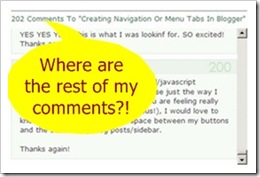
Blogger only shows the first 200 of your comments in the (first) post page. The next 200 comments are supposed to be displayed on the second page, another 200 on the third page and so on.
When your comments count for a post exceeds 200, Blogger will automatically add a pager, so you can navigate between comment pages. But in some cases (due to third party template maybe?) no pager is added.
That’s what happened to me when one of my posts did exceed 200 comments. From the comment count (see picture above) I knew I have 202 comments, yet I could not access/view the 201st and beyond comments because the pager was nonexistent.
After some Firebugging on blogs that do have the comments pager on and a follow up search into good ol’ Minima template code, I finally found the comment pager code. Here it is:
<b:if cond='data:post.commentPagingRequired'>
  <span class='paging-control-container'>
    <a expr:class='data:post.oldLinkClass' expr:href='data:post.oldestLinkUrl'><data:post.oldestLinkText/></a>
    <a expr:class='data:post.oldLinkClass' expr:href='data:post.olderLinkUrl'><data:post.olderLinkText/></a>
    <data:post.commentRangeText/>
    <a expr:class='data:post.newLinkClass' expr:href='data:post.newerLinkUrl'><data:post.newerLinkText/></a>
    <a expr:class='data:post.newLinkClass' expr:href='data:post.newestLinkUrl'><data:post.newestLinkText/></a>
  </span>
</b:if>
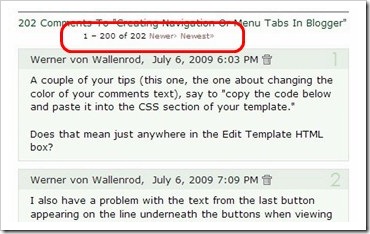
Now we want to display the pager at the beginning of the comment section, right before the comment block (where all comments are listed out). You may also want to display it one more time near the end of comments section, right before comment footer.
1. Display at the beginning of comment section
- Login to your Blogger account.
- Go to Dashboard > Design > Edit HTML.
- Back up your template.
- Tick the Expand Widget Templates check box on top right of the HTML window.
- Look for following lines in your HTML code and paste the comment pager code right before it.
PASTE COMMENT PAGER CODE HERE
<dl expr:class='data:post.avatarIndentClass' id='comments-block'>
  <b:loop values='data:post.comments' var='comment'>
The exact code may differ slightly and your template may have more than one places where comments-block are used. To avoid mistakes, make sure this two keywords are there: <dl> tag and the whole code in line 3.
2. Display at the end of comment section
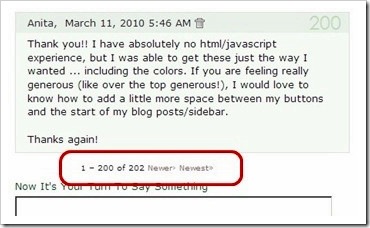
Look for following code lines and just insert the comment pager code as indicated. Again the code below may vary from template to template. You may find more than one places where comment-footer are used. To avoid mistake, make sure you can find comment-footer and data:postCommentMsg (line 11) in the code.
PASTE THE COMMENT PAGER CODE HERE
      <p class='comment-footer'>
        <b:if cond='data:post.embedCommentForm'>
          <b:if cond='data:post.allowNewComments'>
            <b:include data='post' name='comment-form'/>
          <b:else/>
            <data:post.noNewCommentsText/>
          </b:if>
        <b:else/>
          <b:if cond='data:post.allowComments'>
            <a expr:href='data:post.addCommentUrl' expr:onclick='data:post.addCommentOnclick'><data:postCommentMsg/></a>
          </b:if>
        </b:if>
      </p>
3. Styling the pagers
To style the section, you simply add a styling rule in CSS, like this:.paging-control-container {
/* add styling declarations here */
}
And place it before ]]></b:skin> line in your template code.
Enjoy!
31 comments to "Solving 200+ comments display problem"
it won't appear on my template. help! pretty pleaaasee??
i already added your code, but still nothing. look:
http://randomwahmthoughts.blogspot.com/2010/01/teaser-number-3.html
@K
I see you have many comment-footers.
Try moving the code up a little, to here:
[div class='comment-lower'][/div]
[/b:loop]
[/dl]
PUT YOUR CODE HERE
YOU are the man! it worked perfectly. again, thank you soooo much! luv ya! ;)
errr.. back so soon :P
unfortunately, when I go to page 2 of the comments, the numbering resets to 1 :(
see:
http://randomwahmthoughts.blogspot.com/2010/01/teaser-number-3.html?commentPage=2
@K
Now that is another problem altogether.
Read Numbering comments in Blogger
thanks for the tips! but i never get over 200 comments before.. =P
Thank you for this solution, it works great and has solved an old annoying problem for me.
Oh dear god. I thought I entered the code in the right place. But apparently not. So... can you help me please?
http://beingme-alison.blogspot.com/
Ooh never mind I got it done!
I have been looking for this fix for a long time. I even blogged about it here . . .
http://www.3garnets2sapphires.com/2010/06/you-can-now-see-beyond-first-200.html
Thanks so much for everything! Your site is a great resource. I will definitely visit again. :)
@Karen of 3G2S
Glad it fixed your problem.
Thank you for the link up post, I really appreciate it :)
I just added this to my template today, but it's not working. I do realize Blogger is having major comment/display issues today, so I hope that is the problem. When they have that all resolved, if this still isn't working on my blog, I'd appreciate some feedback. I've never had a post with over 200 comments until now, so I've never had to worry about it.
@flmom
Could you post the URL of the 200+ comment post here?
It's working - must have been Blogger's issues. Thank you so much for this tutorial!
Brilliant thanks!!!
working fine for me thanks a lot..
i cant say anything accept THE BEST
Help! I have added this code (I tried it for both above and below the comments) and it won't show up. I have a giveaway ending with over 200 comments and I need to see them. Please help ASAP!
http://dirtytruthreviews.blogspot.com/2011/01/ergo-baby-carrier-review-giveaway.html
@Ashly
It does show up, under your post title!
To move it to the top of comment block, use Ctrl+f to find this line:
dl id='comments-block'
Paste the comment pager code right before it.
It would be nice to have pages with a smaller number of comments (say 50) and the display should start from the last page that contains the newest comment.
Do you have any idea?
@toto
That is beyond our (Blogger users') control.
But I think there are third party comment systems (such as Disqus and Intense Debate) that allow you to do that.
any chance that the comments can be limited to 20 comments or so? having 200 comments in a single page slows my page and it messes with the template
@ARC™
Nope. I guess we're stuck with that.
Tak dapek den nak nolong nye :)
Thank you so much it is 100% working for me, and easy to follow too. Thank you I've been looking for this forever
hi i was the one who posted last Jan8, this was working beautifully until I made some tweaks on my widget and template (added jquery and changed font sizes).. I did undo the changes, but the paging still wouldn't appear. i hope you can help, thank you!
http://love-text.blogspot.com/2010/11/my-amnesia-girl-lines.html#comment-form
Just found the reason. It doesn't appear because of blogger's new threaded comments feature. i disabled per post comment feed in settings and followed this: http://yabtb.blogspot.com/2012/01/blogger-has-now-threaded-commenting.html
how do I put the title of the post after the number of comments? example: 26 comments to "Solving 200+ comments display problem"
thanks
Giuliana
@La cucina imperfetta di Giuliana
Look for this code:
<h4>
<b:if cond='data:post.numComments == 1'>
1 <data:commentLabel/>:
<b:else/>
<data:post.numComments/> <data:commentLabelPlural/>:
</b:if>
</h4>
and replace it with this:
<h4>
<b:if cond='data:post.numComments == 1'>
1 <data:commentLabel/> to "<data:post.title/>"
<b:else/>
<data:post.numComments/> <data:commentLabelPlural/> to "<data:post.title/>"
</b:if>
</h4>
thank you very much!!!!
Giuliana
hey can i decrease the limit of 200 to 50?? Please tell me...
@Anonymous
You can't, Blogger doesn't have that option.
Post a Comment
We love to hear from you! Leave us a comment.
To ensure proper display, HTML/XML/Javascript need to be escaped first using this escape tool.